IntelliJ IDEA
With the plugin enabled, Reformat Code runs open-java-format instead of the IDE's built-in Java formatter, so the IDE and the build produce identical files. The IDE's own Java code style settings stop applying.
The plugin needs IntelliJ IDEA 2024.2 or later, or another JetBrains IDE with Java support, such as Android Studio.
Install
From the JetBrains Marketplace
- Open Settings, go to Plugins and switch to the Marketplace tab.
- Search for open-java-format and click Install.
- Restart the IDE.
The plugin page on the Marketplace has an Install to IDE button that does the same for an IDE that is already running.
From a file
A version that is not on the Marketplace yet can be installed from a release.
- Download
open-java-format-idea-plugin-2.98.0.3.zipfrom the latest release. Do not unpack it. - Open Settings, go to Plugins, click the gear icon and choose Install Plugin from Disk….
- Select the zip file and restart the IDE.
Enable it for a project
The plugin is off in every project until you turn it on.
- Open Settings and go to Other Settings → open-java-format Settings.
- Tick Enable open-java-format.
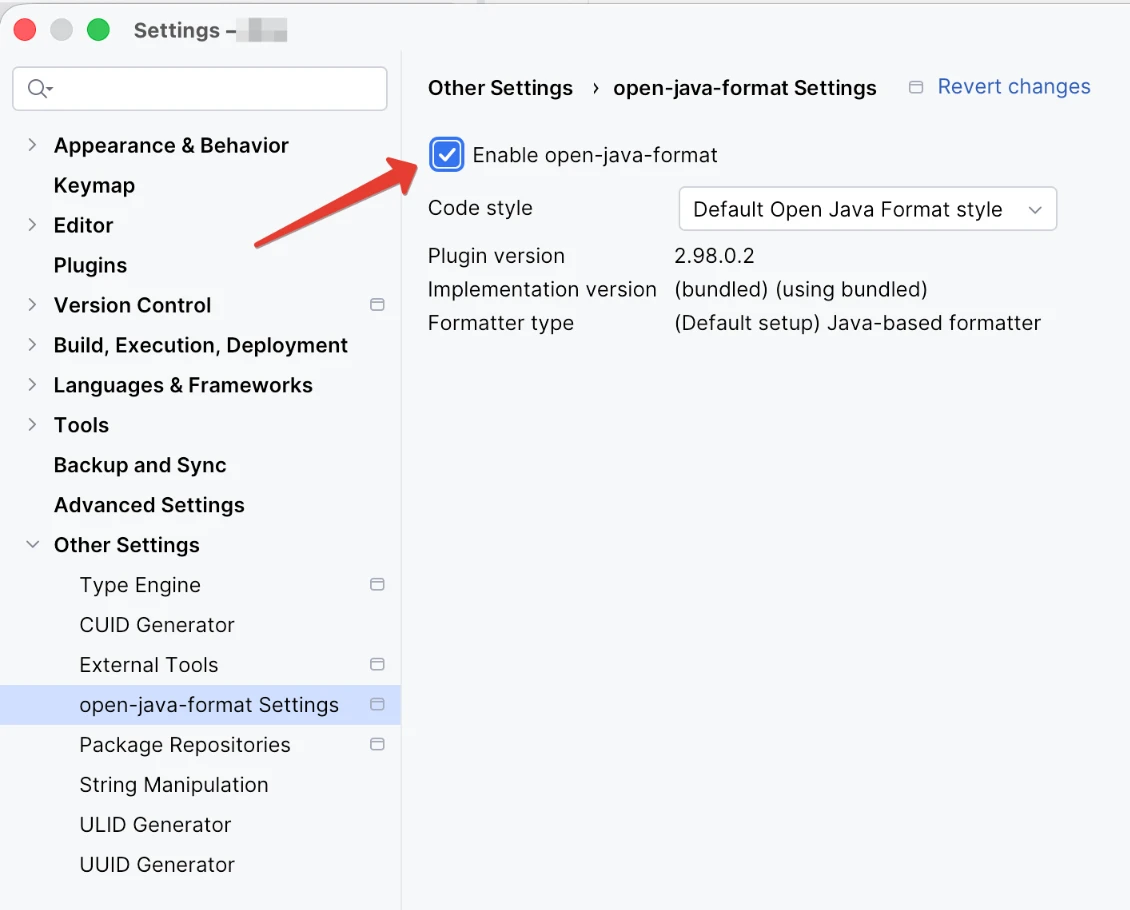
From then on Reformat Code, Ctrl+Alt+L or Option+Cmd+L on macOS, formats Java files with open-java-format.
Format on save
- Open Settings and go to Tools → Actions on Save.
- Tick Reformat code.
- Next to it, choose Java in the file list and Whole file instead of Changed lines.
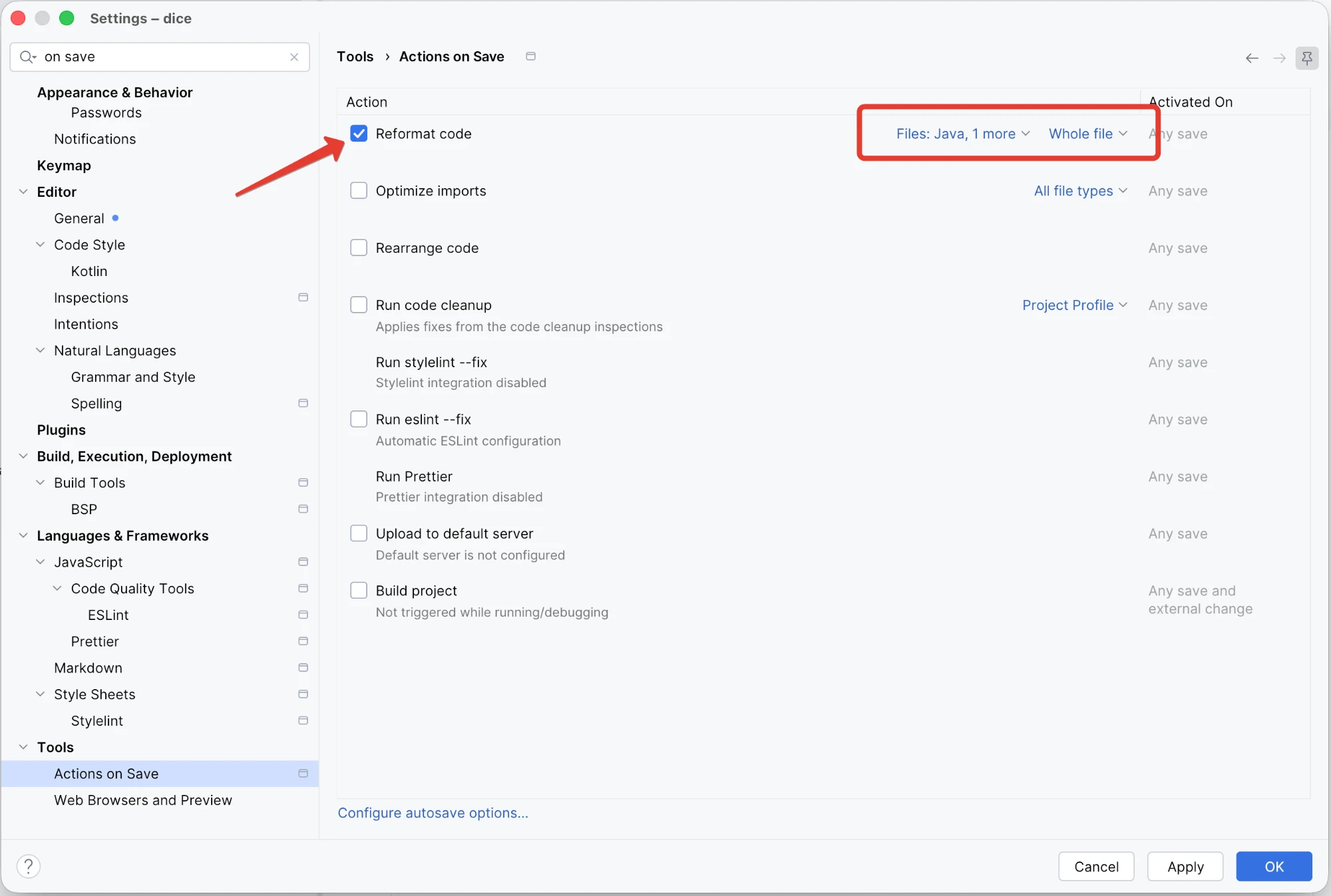
Limiting it to Java keeps other files out: the IDE would reformat those with its own formatters.
Whole file formats the entire file, which is what the GitHub Action checks.
Changed lines formats only the lines you edited, the way formatDiff does.
Which formatter version runs
A project that applies the Gradle plugin takes the formatter version from the build.
Every other project uses the version bundled with the IDE plugin, which the settings page shows as
(bundled) under Implementation version, as in the screenshot above.
By default the formatter runs in a process of its own, on the IDE's runtime, so the project SDK can be any version.
Native binary
In a project with the Gradle plugin, the IDE can run the formatter as the native binary that the build uses. It is switched on in the build, not in the IDE:
After the next Gradle sync in the IDE, the plugin writes the path of the binary into
.idea/open-java-format.xml, and Formatter type on the settings page changes from
Java-based formatter to Native image formatter. Each reformat starts the formatter as a new
process, and the native binary starts without a JVM.
The binary runs on the platforms listed on the Gradle plugin page. Elsewhere the plugin ignores the property, and the IDE keeps the Java-based formatter.